Multi-Distribution Management
The module lets you manage different firewall distributions, e.g., pfSense, OPNsense, AIMDefense.
- Each individual firewall can be tracked as an asset in the dashboard, including vendor, version, location, and responsible person.
- Vendor independence: new distributions can be added as needed.
- A unified view of the systems regardless of vendor, which reduces fragmentation.
- Grouping and multi-tenancy: when several customer environments are managed, a multi-tenant structure is possible (COD supports multi-tenancy).
Direct Access via SSH or HTTPS
- Through a centrally managed jump host (COD core server), you can access the firewall systems directly via SSH.
- Alternatively, you can also reach the HTTPS web interface of the firewall through the dashboard within the same network.
- Benefit: no manual lookup of individual IPs or credentials, the dashboard provides the access channel.
- Access control via roles & groups: who may use SSH, and who may only see the monitoring or the interface? COD supports rights and group management.
Live Monitoring
- The module displays the live data of the individual firewall systems, in particular CPU, RAM, and interfaces (network interfaces) of the firewalls.
- Dashboard visualization: an overview per firewall as well as an optional aggregated view of multiple firewalls.
- Alerting/thresholds: if, for example, an interface is critically loaded or has failed, a notification can be generated.
- Benefit: real-time transparency into firewall operations, faster troubleshooting, and root-cause analysis.
Maintenance and Update Planning
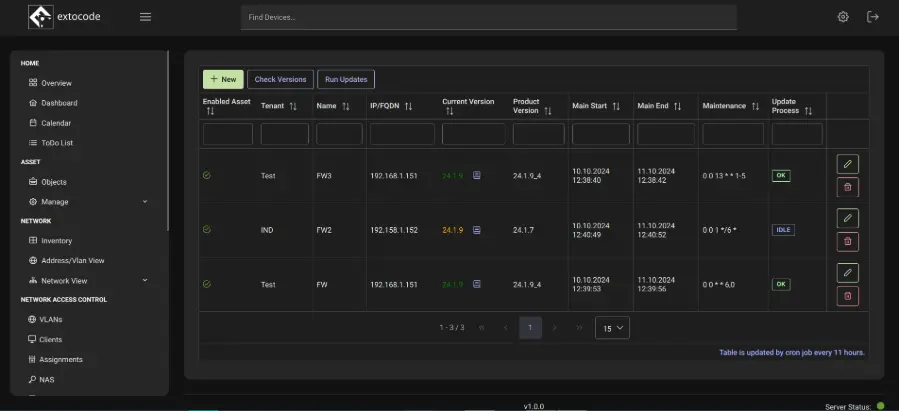
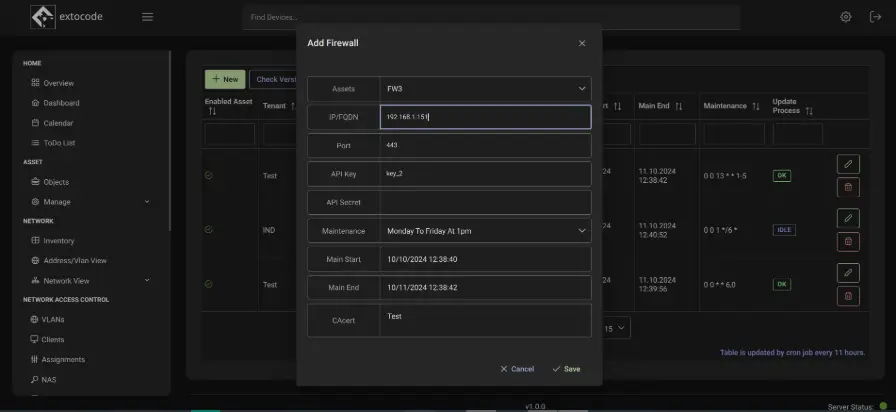
- Planning: a maintenance or update cycle can be scheduled for each firewall, including a calendar view in the dashboard.
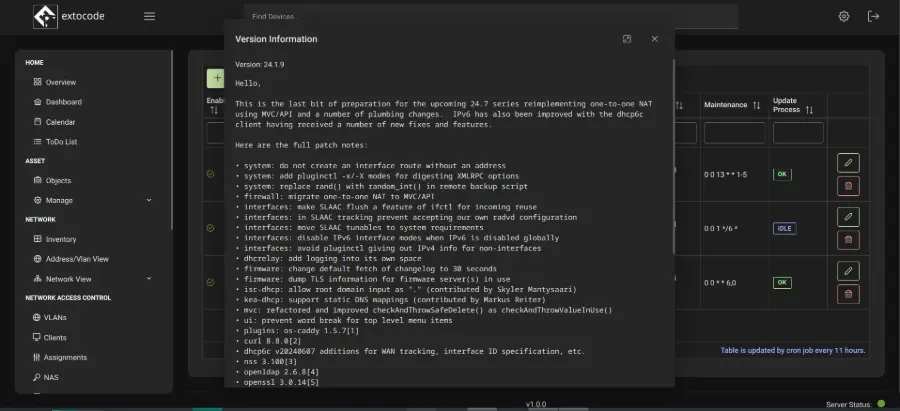
- Update status: the module clearly shows the current version of the firewall, available updates, and how many updates are required.
- Options: perform an update manually or schedule it automatically with a calendar entry plus reminder function.
- History: documentation of past maintenance and updates, responsible persons, and results.
- Benefit: fewer outdated systems and increased security and availability.
Certificate Management Functions
Certificate management offers proactive monitoring functions. Administrators can define precise intervals for certificate monitoring and configure automated notifications before expiration.
Control-Interval Configuration
Defines check intervals for automatic certificate scans. At configured intervals, the system checks the expiration status of all managed certificates.
- Day-based interval setting
- Week-based cycles possible
- Manual trigger options available
Message-Deadline Setup
Configurable lead time for expiration notifications
- Days, weeks, or months
- Automated email delivery
- Escalation levels possible
Intuitive Management of Certificate Details
The Certificate Authority (CA) management interface gives you fast, direct access to all associated certificate information. The corresponding CA and certificate data are displayed automatically in the detail areas with a single selection.
Select a certificate
In the main overview, select the desired certificate by clicking the corresponding table row.
Get detailed insight
The detail areas are populated automatically and instantly with all relevant CA and certificate data.
Check CA assignment
Note the rule: only one CA is allowed per certificate. For quick verification, this is visible directly in the CA column of the table.
Alias Functions
Add an alias
When adding aliases, firewall-specific fields that require dependent data are hidden.
- Focus on commonly used types
- Code customization for special cases
Edit an alias
Database changes are automatically pushed via API to all zone firewalls. Errors are recorded in the error log.
- Bidirectional synchronization
- Automatic error logging
Delete an alias
Before deletion, all zones are checked for use of the alias. Nested aliases require manual cleanup.
- Dependency check
- Recommendation: remove zones first
Zone Migration Process
Migration to zone functionality enables the structured transfer of firewalls into zone-based management structures.
Critical rule: each firewall may be assigned to exactly one zone.
- Single-firewall migration
- Individual assignment of firewalls to zones with a strict one-zone rule
- Alias handling
- Existing firewall aliases are not carried over during migration; firewalls are treated as "empty"
- Zone storage
- Manually added aliases are distributed to all firewalls in the zone and fixed in the database
Alias Management Workflow
Management starts with two critical sections for the initial configuration. The Source Data area enables synchronization with a template firewall, while the database is automatically populated with UUID-based alias entries.
- Template-firewall selection
- Selection of the reference firewall for the initial alias synchronization
- Sync process
- API-based synchronization automatically creates UUIDs for all imported aliases
- Database population
- Automatic storage of all aliases except default entries
Security Validation
Critical security measures ensure the integrity of the firewall configuration. Vendor information is mandatory when saving, and the firewall status is checked and set automatically only for manually activated assets.
Vendor Required Field
Vendor information must be filled in for every save operation to ensure configuration consistency
Save button disabled without a vendor
Automatic Status
The firewall is marked as "enabled" when the asset is manually configured as active, the communication data is set up, and communication is possible.
- The status check only runs when the asset has been manually activated.
- A successful check requires: asset active + communication data configured + reachability.
Error Log Management
The error log list system provides structured error handling with user-friendly management functions. The paginated display is optimized for performance and enables efficient processing even with larger volumes of errors.
Processing tracking
Processed error entries can be checked off individually to track processing progress. The system supports multi-selection for efficient bulk processing.
- Checkbox-based selection
- Multi-selection per page
- Persistent processing status
Efficient performance
Database queries are limited to page-sized amounts, ensuring optimal performance even with extensive error logs.
- Queries are designed for optimal performance